Image Prompts Work Best When Details Match What You Want to Control
ChatGPT’s guide to Images presents image-making as an iterative process: describe the details that matter, inspect the result, then use follow-up instructions to adjust it. For edits to existing photos, the examples show users naming both the change they want and what should remain untouched, such as adding plants while preserving a room’s layout.
Specify the details that matter—and leave room for the rest
ChatGPT Images starts with a description: say what you want to make, and ChatGPT generates an image from those instructions. The useful choice is how much to decide before seeing a result. The examples break a prompt into four dimensions: subject, setting, style, and mood. “A yellow umbrella” names the subject; “on a rainy city street” adds a setting; “a realistic photograph” specifies a style; and “a quiet, reflective mood” gives the image a tone.
Those details help direct the result toward what you have in mind. But not every choice has to be made upfront. With a prompt such as “a yellow umbrella,” ChatGPT can fill in an unspecified background and lighting. A shorter prompt therefore leaves more visual decisions open; adding details narrows the direction. The on-screen examples—a lighthouse on a sea turtle, a paper city in a snow globe, and a pear made of crystal—show how different the results can be when the subject or treatment changes.
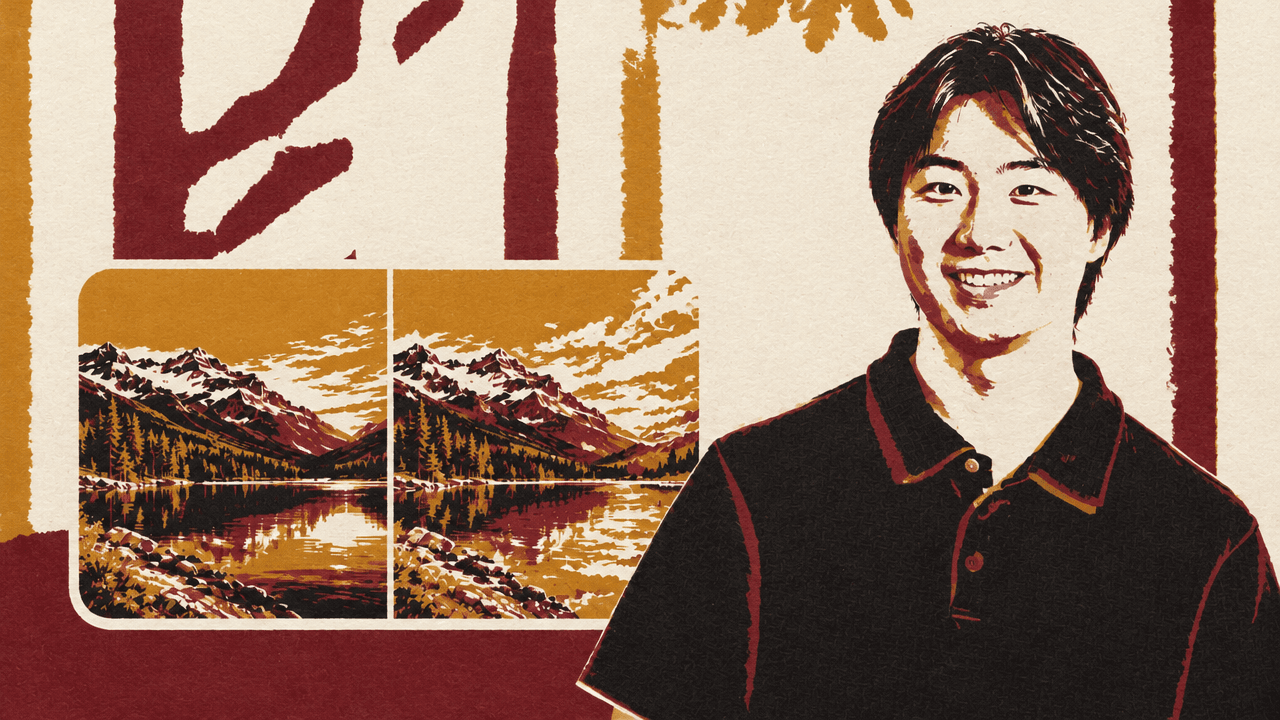
A phone wallpaper prompt makes the trade-off concrete. “Create a phone wallpaper of mountains at sunrise” supplies a subject and setting, but leaves the mountains, colors, and other visual choices open. The first result is vertical, with warm golden light, dramatic peaks, and misty valleys. If that is not quite the desired look, the next instruction can respond to what is actually there. The practical sequence is to set the essentials, see what the prompt leaves undecided, and add details when a particular choice matters.
Use each result to choose the next instruction
The mountain image is a starting point, not a final specification. After seeing it, the user asks: “Use softer colors and make it look like a watercolor painting.” This changes two aspects of the image—its color treatment and style—without replacing the subject or setting.
A later instruction gets more precise: “Make the sky a softer pink and add a little mist between the mountains. Keep the watercolor style.” The request names two changes and explicitly retains a quality established in the previous version. That combination makes the follow-up legible: adjust the sky and mist, but do not lose the watercolor look.
The demonstration’s method is to make a change, inspect the result, and decide what to adjust next. It does not require anticipating every preference in the first prompt. A broad instruction can establish the image; subsequent prompts can point to details that become important only once they are visible. The exchange stays in the same chat, where the user can keep refining the image, then save it for use on a phone.
Name what should change—and what should stay
An existing photo can provide the starting point when the goal is to explore a change to a real scene. To preview a living room with new decor, the user uploads a photo and asks: “Show this room with a rug and a few plants. Keep the furniture and layout the same.” The first part requests additions; the second sets a boundary around the edit. The resulting image shows the room with the rug and plants, while preserving the furniture and layout, giving the user an idea of how the space might look before buying anything.
That boundary matters because an edit has two parts: the requested change and the parts of the image that should remain. The living-room prompt makes both explicit. In a narrower example, a photo shows a wooden bench on a patio with a trash can in the background. The instruction is: “Remove the trash can in the background. Keep everything else the same.” The displayed result removes the can and retains the bench, trees, plants, patio, and overall setting.
Together, the examples show three ways to begin: describe a new image, refine an image through follow-up instructions, or upload a photo and request a change. For edits, the prompts demonstrate a useful pattern: identify the addition or removal, then state what should be preserved. For generation, the pattern is different: specify the visual details that matter, and let the first result reveal which choices still need direction.