GPT Image 2 And Aleph 2.0 Replace Video Objects From One Still
ElevenLabs’ tutorial argues that object replacement in video can be reduced to a frame-based workflow: use GPT Image 2 to alter a clean still from the source clip, then give that still to Aleph 2.0 as the target look for the full video. The demonstration replaces an apple with a flaming potato while preserving the rest of the shot, and extends the same method to background swaps and green-screen-style edits. The source’s practical caveat is that results depend on a clear reference frame and crisp footage with limited motion blur.
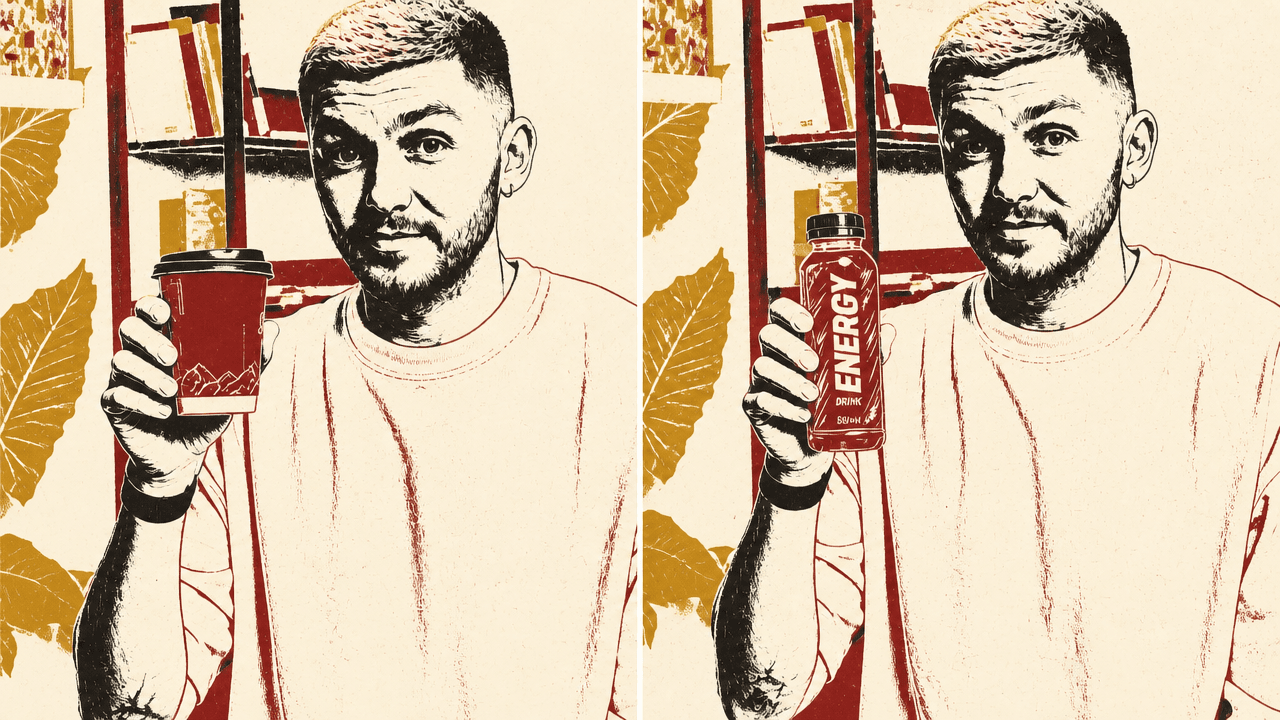
The edit is anchored by a clean still frame
The workflow depends heavily on the still frame used as Aleph 2.0’s target look. ElevenLabs separates the edit into two jobs: first create a still image that shows the desired change, then use that still image as the visual target for the video edit.
The demonstration uses a clip of a person tossing an apple between two hands. The intended edit is narrow but visually demanding: turn the apple into “a potato that’s on fire” while leaving the rest of the video intact.
Inside ElevenCreative, the process begins in Image & Video rather than directly in video generation. Aleph 2.0 needs a target look to apply across the original clip, and that target look is created by GPT Image 2 from a clean frame pulled from the video itself.
The reference frame matters. The selected frame should show both the subject and the object clearly. For this clip, that means the person and the apple must both be visible. ElevenCreative’s frame selector is used after dragging the uploaded video in as a reference; the pencil icon opens the frame-selection interface. The selected frame becomes the image reference for GPT Image 2.
The still-image prompt is deliberately simple: “Replace apple with a potato that’s on fire.” If the user had a specific flaming potato in mind, a second image reference could be added. In that version, the prompt would identify the original frame and the second uploaded reference image, instructing the model to replace the apple with the object from that second image. In the shown workflow, no second reference is used; GPT Image 2 is asked to infer the replacement from the text prompt alone.
The compact sequence is:
- Select a clean frame from the original video where the subject and object are visible.
- Use that frame as the image reference for GPT Image 2.
- Prompt the replacement: “Replace apple with a potato that’s on fire.”
- Set the image generation to 2K, high quality, and the same 16:9 aspect ratio as the source video.
- Generate four still-image variations.
- Choose the best generated still as the target look.
- Load the original video in the Video tab with Aleph 2.0.
- Add the chosen still to the target-look section.
- Reuse the same edit prompt and generate video variations.
Quality settings matter because the still becomes the video’s visual anchor
Before generating the still image, the image-generation settings are changed. The reason given is direct: “the better the input, the better the output.” Resolution is increased to 2K, quality is set to high, and the aspect ratio is set to 16:9 because the original video is 16:9.
The settings panel shown in ElevenCreative makes those controls explicit: resolution options include 1K, 2K, and 4K; quality options include low, medium, and high; aspect-ratio options include auto, 21:9, 2:1, 16:9, 3:2, 4:3, and 1:1. For the apple-to-potato edit, the chosen combination is 2K, high quality, and 16:9.
Those settings matter because the generated still is not the final product; it becomes the visual target for Aleph 2.0. A low-quality or mismatched frame would become the model’s reference for the entire video edit. GPT Image 2 generates four variations, giving the user several candidate frames of the host holding or interacting with a flaming potato instead of an apple.
The workflow then moves from the Image tab to the Video tab. The original video is added again as the video source. One of the newly generated stills—the one judged to have the best flaming potato—is dragged into the “Target look” section. The same prompt, “Replace apple with a potato that’s on fire,” is reused to describe the intended video edit. The speaker generates two video variations so there is more than one result to choose from.
The preservation claim rests on the side-by-side comparison
The resulting edit is shown as the same original video, but with the apple replaced by a flaming potato. The speaker points out that the smoke and flames adapt “a little bit” to the movement and physics of the object in the clip. In the side-by-side playback, the original clip of the host throwing an apple is shown next to the AI-generated version in which the thrown object is a flaming potato.
That comparison is the visual evidence for the preservation claim. GPT Image 2 defines the desired replacement in one clean frame; Aleph 2.0 carries that change through the video. The target look gives Aleph 2.0 a visual anchor for the edit, while the original clip supplies the motion, framing, and surrounding scene.
The speaker’s claim is specific: “Nothing in the video has changed except the object that's been thrown around.”
The result is described in terms of continuity: the replacement object follows the original apple’s movement, while the rest of the shot remains the same. The smoke and flames are not presented as perfectly simulated physics; the speaker says they adapt “a little bit” to the movement and physics of the potato, or of the original apple’s motion.
The same target-look method can replace backgrounds or create green screens
The same target-look method can also change the broader style of a video. The background example uses the prompt: “Replace the background with a clean and modern office with a skyline of a city in the background.”
The accompanying visual shows an original frame next to a version with a modern office and city skyline background. The process is the same: select a clear frame from the original video, prompt GPT Image 2—or Nano Banana Pro—to create the desired altered frame, then use that generation as the target look in Aleph 2.0 with the original video.
Green-screen creation is presented as another direct extension. A user can prompt one frame to become a green-screen version, then use that frame as Aleph 2.0’s target look with the original video. This is not described as a separate toolchain; it is the same frame-to-target workflow applied to a different visual goal.
The practical boundary is image clarity. A tip shown on screen states: “For best results use high quality footage with slow movements.” The speaker adds that the more blurry the motion is within the video, the harder it is to get results. Slow movement and crisp source footage are presented as the best conditions for the method.
That caveat is not incidental to the workflow. The method relies on a clear source frame to define the edit and clear footage for Aleph 2.0 to carry it through time. If the original video is clear and crisp, the speaker says users can “add and change almost anything” within it; if the motion is blurry, the edit becomes more difficult.